Turnitin Feedback Studio: Complete Guide for Instructors
Feedback Studio is where you actually grade — separate from the Similarity Report and worth mastering. A working instructor's guide to QuickMarks, rubrics, voice comments, PeerMark, and gradebook sync in the 2026 viewer, with a batch-grading workflow that survives thirty papers in one sitting.
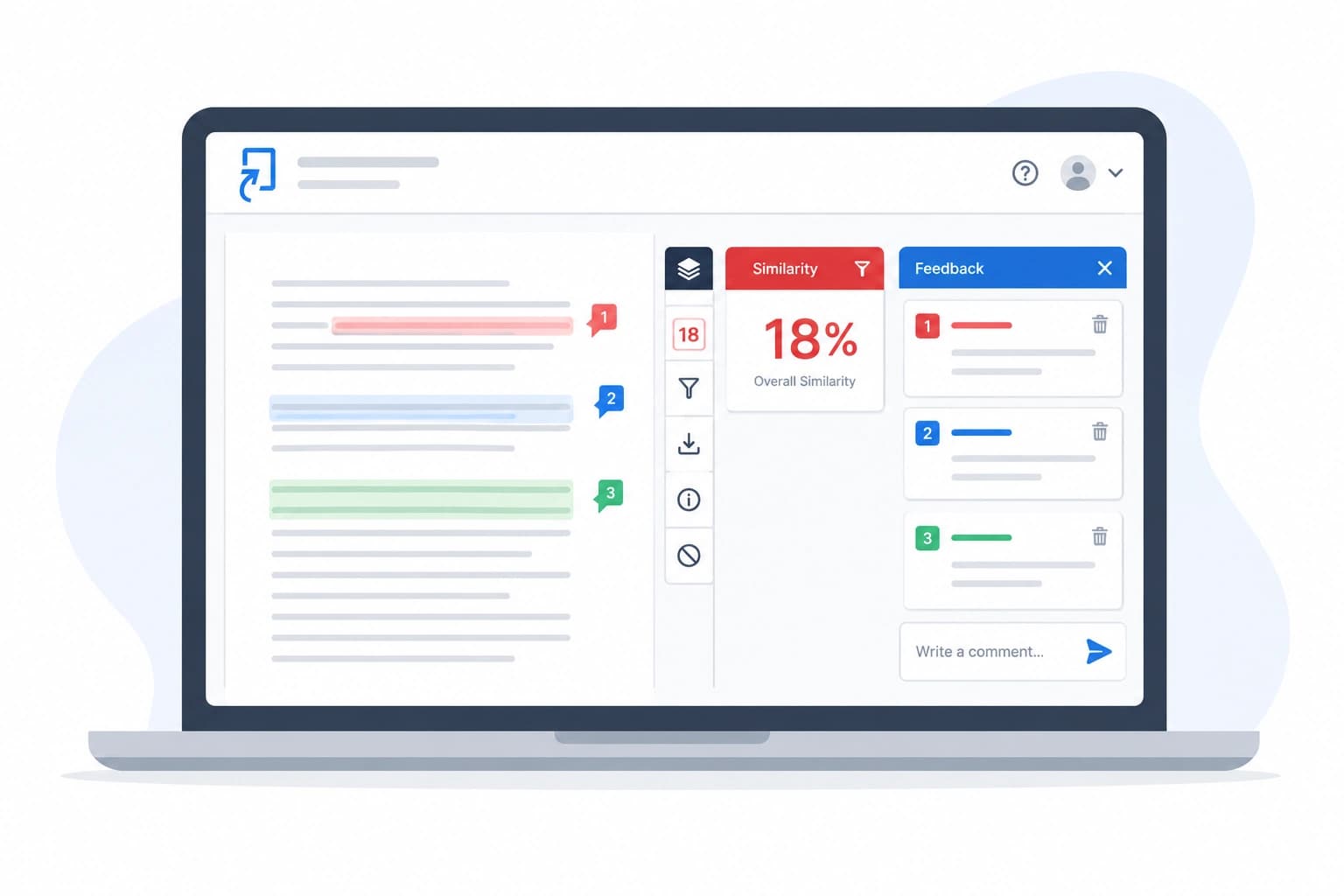
Feedback Studio is the grading environment inside Turnitin — a separate interface from the Similarity Report, even though they open in the same viewer. The Similarity Report tells you where the text came from; Feedback Studio is where you actually mark. If you spend more than a couple of hours a week grading, the difference between using Feedback Studio well and using it as a glorified PDF annotator is roughly a working day per marking cycle. This guide walks through the parts of the tool that repay the effort — QuickMarks, rubrics, voice comments, PeerMark, gradebook sync — and how experienced markers stitch them into a workflow that survives a stack of thirty papers on a Friday afternoon.
What Feedback Studio actually is
Feedback Studio is Turnitin's document viewer with an instructor-side layer for comments, marks, rubrics, and grades. It is what used to be called GradeMark before Turnitin merged the branding. The Similarity Report and the AI Writing Report are separate panels that open in the same viewer, but the annotation tools, QuickMarks library, rubric scoring, and grade field belong to Feedback Studio itself. A short primer on the underlying platform, if you are new to it, is our overview of what Turnitin is; for the mechanics of the flag numbers that appear alongside your feedback, see understanding the Turnitin similarity score.
Turnitin is currently transitioning instructors from the classic viewer to the redesigned “Next Generation” Feedback Studio. Most institutions were auto-enrolled during the 2025-26 academic year, with the classic workflow scheduled for deprecation. The differences are documented in Turnitin's Legacy Workflow Deprecation FAQ, and the new-viewer feature list lives in the Next Generation of Turnitin Feedback Studio Resource Center. Everything below reflects the new viewer; where the classic behaviour still matters, I have flagged it.
QuickMarks — the highest-leverage feature in the tool
A QuickMark is a reusable comment you drag onto the page. Turnitin ships with several standard sets — Composition, Format, Punctuation, Usage — plus subject libraries you can enable per marker. Once dragged in, a QuickMark can be expanded with an individual comment, so the mark itself gives the rule (“comma splice”) and the inline note explains why it matters in that sentence. The workflow is documented in Turnitin's new Using QuickMarks guide.
The lift comes from building your own set. Any comment you have written twice belongs in a custom QuickMark — “evidence needed here,” “topic sentence buried,” “citation is real but doesn't support this claim,” whatever you find yourself typing. Create these through the QuickMark Manager and group them into a set attached to the course. Turnitin's guide on creating QuickMarks and sets covers the manager UI. In the 2026 release notes, Turnitin added Excel export and import of sets, which means a marking team can now sync a shared set without emailing screenshots — the release detail sits in the New Turnitin Feedback Studio FAQ.
Two practical notes. First, colour-code your custom set — the new viewer supports accessible palette colours per QuickMark, which is how students actually tell your “evidence” marks from your “structure” marks at a glance. Second, keep the set small. Twenty well-designed QuickMarks used often beat a hundred that you have to scroll through. The point of the tool is speed.
Rubrics and grading forms
Rubrics attach at the assignment level and appear inside Feedback Studio in the side panel during grading. Turnitin supports three types: standard rubrics (scored, criteria weighted by percentage, cell descriptors), custom rubrics (scored, criteria weighted by absolute points), and qualitative rubrics (descriptor-only, no numerical score). A fourth object, the grading form, is a rubric's cousin — free-text feedback boxes per criterion with an optional score, useful for postgraduate work where you want structured commentary without cell descriptors. The setup mechanics are still covered in Turnitin's Creating a rubric or grading form guide.
Two configuration choices matter more than instructors usually realise. First, in the assignment settings, tick the option to let students see the rubric before submission. Every empirical study on rubric-based marking says students write to what they can see; hiding the rubric until after grading is a self-inflicted wound. Second, in the 2026 viewer Turnitin added ranged rubrics, where each cell holds a point range instead of a fixed number — this is what the University of Cambridge's Turnitin guidance and other institutional documentation recommend for essay marking where you need flexibility inside a band without inventing new criteria. Turn ranged rubrics on and your marks stop bunching at the cell midpoints.
Attach the rubric before students submit. You can change it after, but scores calculated under the old rubric do not migrate — you will end up regrading. Rubrics are reusable across assignments in the same course; build one carefully and clone it.
Voice comments — and when to use them
Feedback Studio records one voice comment per submission, up to three minutes long, saved with the rest of the feedback. The recording tools sit in the general comment panel; the workflow is in Turnitin's Recording voice comments guide. Students play voice comments back inside their normal feedback view, described in Reviewing instructor feedback.
The pedagogical case for voice comments is that they carry tone in a way inline text never does. The tactical case is that they are faster than typing when you need to explain something structural — argument shape, how a section is doing too much work, why the introduction is undercutting the conclusion. Use text and QuickMarks for local, sentence-level feedback; use the voice comment for the summative “here is what this paper is doing and here is where it needs to go” note. Three minutes is not a hard target — a good voice comment is often ninety seconds. The trick is to have the rubric result and any patterns from your QuickMarks in front of you before you hit record so you are summarising, not thinking aloud.
Inline comments, highlights, and editing marks
Beyond QuickMarks, the toolset breaks down into bubble comments (a highlighted passage plus your free-text note), text comments (a point-anchored note without a highlight), and editing marks — the small red carets, delete strokes, and transposition marks that behave like traditional proof-reading symbols. In the new viewer, Turnitin added margin comments alongside the anchored ones; both types coexist and both are visible to the student. The classic strikethrough tool sits in the composition marks palette and produces the standard editorial line-through-with-replacement notation students already know from track changes.
Restraint is a virtue here. A page bristling with fifteen highlights and eight bubble comments is less useful than four well-chosen ones. The pattern I recommend to newer markers: three inline QuickMarks or bubble comments per page maximum, plus one voice comment across the whole paper, plus the rubric. Anything more and the student stops reading; anything less and they cannot triangulate what to fix.
PeerMark — peer review inside Turnitin
PeerMark is a separate assignment type layered on top of an existing Standard Assignment; you cannot create a PeerMark without a submission pool. In the assignment inbox, tick Enable PeerMark, then configure through the Edit settings tab. The full setup is documented in Creating a PeerMark assignment and questions.
The three settings that matter: distribution (Turnitin can auto-assign a set number of papers to each student, or you can pair them manually on the Distribution tab — auto is fine for classes over fifteen), anonymity (anonymous is the pedagogical default; leave it on unless you have a specific reason to attribute), and free-response questions (structured prompts reviewers answer alongside their marginal comments). The reviewer's interface — commenting tools, composition marks, questions — is covered in Writing a peer review. Students see reviews they received after the PeerMark post date passes.
In the 2026 release notes Turnitin flagged a PeerMark redesign in progress; the current UI still works but expect the interface to shift over the next academic year.
Grade export to your LMS gradebook
Grades entered in Feedback Studio push automatically to the LMS gradebook through the LTI 1.3 integration. This is not something you configure at the assignment level — it is a property of how the assignment was created (see our post on how to set up a Turnitin assignment). What matters is the timing:
- Canvas. Grades sync when you enter them in the Turnitin panel and again on the Feedback Release Date. If a student sees a grade in Turnitin but not in Canvas, the sync has failed — force it by opening and closing the submission, or by editing the grade slightly and saving.
- Moodle. Grades sync back to the Moodle gradebook column tied to the assignment. If you have separate Turnitin and manual gradebook items, students see two grades — remove one.
- Blackboard Learn / Ultra. LTI 1.3 sync is generally reliable; the historical Blackboard-Turnitin sync bugs mostly related to Building Block installations, which are deprecated.
- Brightspace (D2L). Grades push into the associated grade item. If GradeMark was not enabled in the folder setup, grades will not sync — a common misconfiguration.
The rule for any of them: enter grades and voice comments before the Feedback Release Date, then let the release date do the visibility work. Manually flipping grades to visible one by one is how instructors accidentally release a partial batch.
The AI Writing indicator inside Feedback Studio
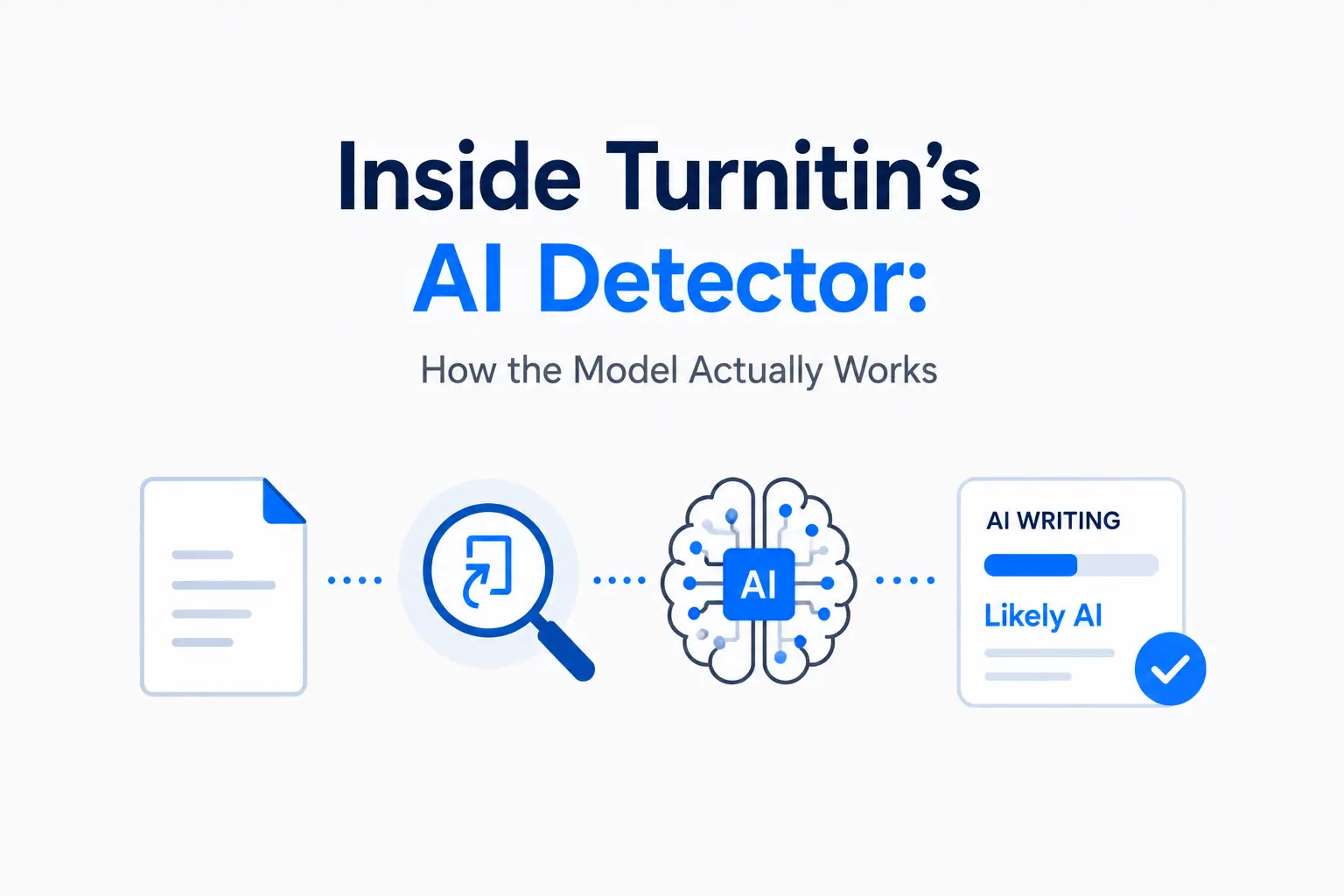
The AI Writing Report is a separate panel from Feedback Studio, but it shares the viewer chrome, so the indicator sits alongside your grading tools. The number is instructor-only, does not affect the similarity score, and does not push to the gradebook. If your institution has AI detection enabled at the account level it appears on every submission; if disabled globally, no assignment setting brings it back. Our post on how Turnitin's AI detection works covers the model behind the number, and Turnitin AI false positives is required reading before you act on a high AI percentage. Whether the score can travel outside your classroom — for example, into a formal misconduct hearing — is treated separately in can a professor report you on a Turnitin AI score.
The 2026 viewer also surfaces the AI indicator inside the sidebar summary alongside the similarity band, which makes it easier to accidentally treat the two numbers as comparable. They are not. A paper can flag high on one and low on the other for entirely independent reasons, and grading either as a proxy for the other is a category error.
Feedback Studio on iPad and mobile
Turnitin's Feedback Studio iOS app supports the full annotation tool set — QuickMarks, rubrics, voice comments, bubble comments — with offline caching so you can grade on a plane and sync later. The Android app is more limited; use it for review, not for primary grading. The iOS grading and feedback documentation covers what syncs and what does not. For long grading sessions, an iPad with an Apple Pencil is genuinely faster than a laptop, mainly because dragging QuickMarks with a stylus beats the mouse-and-scroll dance.
Batch grading thirty papers efficiently
The workflow that survives a full class in one sitting:
- Open the assignment inbox and sort by submission time, not by name — you want to grade in the order they arrived so late submissions do not accumulate at the end when your attention is worst.
- First pass on all thirty: read each paper end-to-end, use only the highlight tool, no QuickMarks yet. This is calibration — you cannot mark to a standard you have not yet found.
- Second pass: annotate with your custom QuickMark set, apply the rubric, write the voice comment. This is where the tool earns its keep — a good custom QuickMark set collapses the second pass to five to seven minutes a paper.
- Third pass, sampled: open every fifth paper in the same order and check your rubric scoring is consistent. If your first ten and last ten diverge more than half a band, moderate.
- Release grades in a single action on the Feedback Release Date, not one by one.
Anonymous marking, if enabled on the assignment, works through this same flow — Turnitin shows submission IDs instead of names until the release date. Turn it on before the first submission arrives; enabling it retrospectively does not un-reveal names you have already seen. The full mechanic sits in Turnitin's Managing anonymous marking guide. For high-stakes assessments in institutions with a documented anti-bias policy, anonymous marking is worth the mild friction of not knowing whose paper you are looking at.
Draft Coach and formative feedback
Draft Coach is Turnitin's student-facing tool that runs inside Google Docs and Microsoft Word Online, giving similarity, citation, and AI writing feedback on drafts before submission. From an instructor perspective it is not part of Feedback Studio, but understanding what students see there — and what they do not — helps you interpret what they submit. Our overview of what Turnitin actually checks and the pattern of student-side tools is a useful companion. When a student arrives with a clean similarity report, Draft Coach is often why; when they arrive with a messy one, it is often because they did not use it.
Frequently asked questions
Can I share a QuickMark set with my colleagues?
Yes. As of the 2026 release, QuickMark sets can be exported to Excel and re-imported by another instructor, which is how marking teams now sync. The classic pattern of admin-level shared sets is still available if your institution runs a central Turnitin admin account; ask your Turnitin administrator whether the set should live at the account level so everyone inherits it automatically.
Do voice comments count against my grading time in any way?
No, they are stored with the submission and do not consume any special quota. Practically, a ninety-second voice comment takes about ninety seconds to record and roughly the same to think through — call it three minutes per paper. Compared to typing the equivalent structural note, that is normally a saving of two to four minutes per submission.
What happens to my marks if the rubric changes after I have started grading?
Turnitin does not migrate scores across rubric versions. If you edit the rubric mid-batch, the old scores stay attached to the papers they were entered on, but any student you grade after the change is scored against the new rubric — which produces exactly the moderation nightmare you would expect. Finalise the rubric before you start, or start over with the new one on the whole class.
Can students reply to my Feedback Studio comments?
Not inside Feedback Studio itself. The comments are one-way — you leave feedback, the student reads it. If you want a two-way conversation, that lives in your LMS discussion tools or the assignment's conversation panel, not in the Turnitin viewer. This is a deliberate design choice on Turnitin's part and unlikely to change.
Is the classic Feedback Studio viewer going away?
Yes, on a rolling schedule through the 2025-26 and 2026-27 academic years. Turnitin's Legacy Workflow Deprecation FAQ is the source of record for the specific dates by region and institution. If you are still on the classic viewer, the transition is worth doing before it is forced on you mid-marking-cycle — the new viewer is where all future feature work is landing, including the pending PeerMark redesign and the ongoing rubric improvements.
Ready to check your paper?
Get your Turnitin report in minutes.
Same report your institution generates — delivered privately, fast.